
Let’s be honest for a second. Watching the World Cup on a massive 65-inch TV is great, but watching it on your computer? That is the strategic choice.
Maybe you are stuck at the office during a crucial group stage match. Maybe you are a “multi-monitor” person who wants the game on one screen, stats on the second, and your work (pretending to work, anyway) on the third. Or maybe you just know that a hardwired PC connection is infinitely more stable than the Wi-Fi your TV uses.
I have spent the last ten years obsessed with stream reliability. I’ve tested every sketchy web player, every Windows app, and every command-line trick to get a stable feed. When the World Cup 2026 kicks off in North America, bandwidth traffic is going to hit historic highs. If you want to survive that digital traffic jam, your computer is your best weapon.
This isn’t just a “download this app” guide. This is a deep dive into turning your Mac or PC into a broadcasting truck. Here is how to watch IPTV on your computer for World Cup 2026 without missing a single pixel.
Why Your Computer Beats Your Smart TV
Before we get into the software, you need to understand why we are doing this. Most people think streaming on a PC is a downgrade. They are wrong.
Smart TVs have weak processors. They struggle to decode high-bitrate streams (like 4K football matches) quickly. Your computer, even an average laptop from three years ago, has significantly more processing power. This means it can handle the heavy lifting of decompressing video data much smoother than a Fire Stick or a generic Samsung TV OS.
Plus, there is the Ethernet factor. We will get to that later, but just know that a PC allows for network tweaking that a TV simply locks you out of.
Method 1: The “Native” Experience (IPTV Smarters & Windows Apps)
If you want an experience that feels like Netflix or a traditional cable box—with a proper menu, a TV guide (EPG), and channel categorization—you want a dedicated Windows or Mac application.
IPTV Smarters Pro (The Standard)
You have probably seen this on mobile, but the desktop version is a workhorse. It’s not the prettiest app in the world (the interface looks a bit 2010), but it works.
- The Good: It handles “Xtream Codes” API efficiently. This means you just type in your username, password, and URL, and it pulls your whole playlist instantly. No messing around with long M3U files.
- The Bad: The Windows version hasn’t been updated in ages. It can feel a bit clunky when resizing windows.
- My Experience: I use this when I want to browse. If I’m looking for a specific match or channel surfing, the layout here is superior to VLC.
MyIPTV Player (The Windows Store Gem)
If you are on Windows 10 or 11, check the Microsoft Store for “MyIPTV Player.” It’s surprisingly good. It integrates well with the Windows OS, supports EPG nicely, and tends to be lighter on your CPU than Smarters.
Method 2: The “Raw Power” Approach (VLC Media Player)
Ask any network engineer what they use to test video streams, and they will say VLC. It plays everything. It’s ugly, it has zero fancy menus, but it is the most reliable video engine on the planet.
However, standard VLC settings will fail you during live sports. Out of the box, VLC is tuned for playing local files (movies on your hard drive), not live streams from a server halfway across the world.
How to Tune VLC for Live Sports
If you just paste your IPTV link into VLC, it will likely loop or stutter every 10 seconds. This is because the “Network Caching” buffer is too small. Here is how I fix it:
- Open VLC.
- Go to Media > Open Network Stream.
- Paste your M3U URL.
- STOP! Don’t click Play yet. Click the checkbox that says Show more options at the bottom.
- Look for “Caching.” It usually defaults to 1000ms (1 second).
- Change this to 3000ms or even 5000ms.
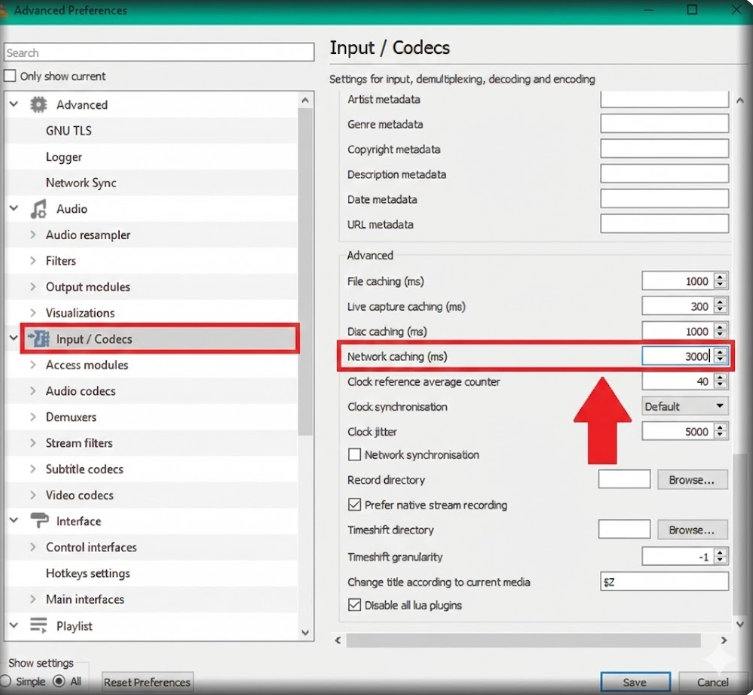
Why this matters: By changing this to 3000ms, you are telling your computer to download 3 seconds of the match before it shows it to you. If your internet hiccups for half a second, you won’t notice because your computer has a 3-second safety net. This is the single best trick for preventing buffering on a PC.
Method 3: The “Emulator” Hack (Running TiviMate on PC)
Here is a secret that power users know: The best IPTV apps aren’t made for Windows or Mac. They are made for Android. Apps like TiviMate are lightyears ahead of anything native to Windows.
So, how do we get the world’s best IPTV player on your desktop? We cheat. We use an Android Emulator.
The BlueStacks Setup
An emulator creates a fake Android tablet inside your computer. It allows you to run mobile apps on your desktop.
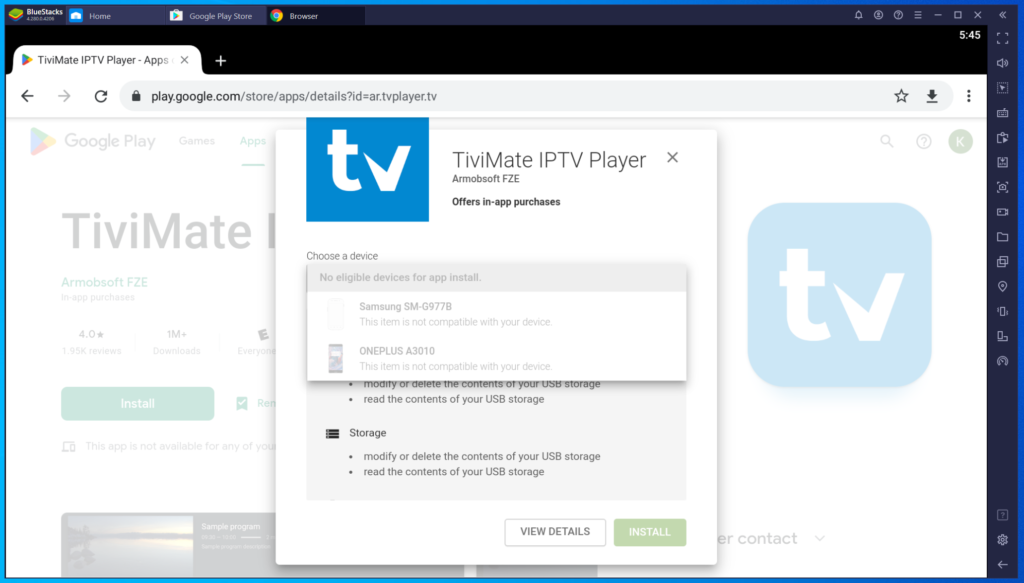
- Download BlueStacks or NoxPlayer (I prefer BlueStacks 5 for speed).
- Install it and sign in with a Google account.
- Download TiviMate (or your preferred Android IPTV app) inside the emulator.
- Setup your playlist exactly as you would on a Fire Stick.
The Trade-off: This consumes resources. Running an emulator requires a decent amount of RAM (at least 8GB recommended). If you have an old laptop, your fans are going to spin like a helicopter takeoff. But if your PC can handle it, this is the premium viewing experience. You get the beautiful interface of TiviMate with the power of your PC.
The “Web Player” Trap (Warning)
Many providers offer a “Web Player” (a website where you login and watch). It sounds convenient—no installation required—but I almost always advise against it for big events like the World Cup.
Web browsers (Chrome, Edge, Safari) are not optimized for long-duration live streaming. They hog memory (RAM), and browser caching can get messy, causing the stream to freeze after 45 minutes. Use the Web Player only as a last resort or for quick checks.
Network Optimization: The Ethernet Rule
I cannot stress this enough: Do not rely on Wi-Fi if you have an Ethernet port available.
Wi-Fi is radio waves. It is subject to interference from your microwave, your neighbor’s router, and even your own Bluetooth headphones. Packet loss on Wi-Fi is normal. When you are watching a YouTube video, packet loss doesn’t matter because the video is buffered minutes in advance. In live IPTV, packet loss equals freezing.
The Cat6 Solution: Buy a cheap Cat6 Ethernet cable. Plug your laptop or PC directly into your router. This reduces “jitter” (the variance in signal latency) to almost zero. During the 2022 World Cup, I ran a ping test: my Wi-Fi had a jitter of 14ms. My Ethernet had a jitter of 1ms. That difference is what keeps the ball moving smoothly across the screen.
The “Throttling” Problem: Do You Need a VPN?
This is a controversial topic, but here is the reality of the situation.
During the World Cup, Internet Service Providers (ISPs) are under immense load. They have automated systems that look for high-bandwidth sustained traffic (like you streaming a 4K match for 2 hours). Sometimes, they intentionally slow down (throttle) that specific connection to save bandwidth for the rest of the neighborhood.
If you have a fast internet speed (say, 100Mbps) but your stream keeps buffering specifically during popular matches, you are likely being throttled.
A VPN (Virtual Private Network) encrypts your traffic. Your ISP can still see that you are using data, but they cannot see what that data is. They don’t know if you are downloading a massive Excel file for work or watching the Final. This often prevents their automated systems from targeting your stream for throttling.
Pro Tip: If you use a VPN on your computer, use the “WireGuard” protocol if available. It is much faster and lighter on your CPU than the older OpenVPN protocol.
Troubleshooting: When the Screen Goes Black
It’s going to happen. Technology isn’t perfect. Here is my rapid-response checklist for when things go wrong mid-game:
- Looping Sound: If the video freezes but the audio keeps repeating the last 3 seconds, this is a decoding error. In VLC, press “S” to stop and then Spacebar to restart the stream. It clears the buffer instantly.
- Video Lagging Behind Audio: This is a sync issue. In VLC, using the “J” and “K” keys allows you to adjust audio delay in milliseconds to sync it back up manually.
- The “Slide Show” Effect: If the video looks like a PowerPoint presentation, your computer might be struggling to decode 4K. Switch to the 1080p (FHD) stream. A smooth 1080p stream looks infinitely better than a choppy 4K one.
FAQ: Watching World Cup 2026 on PC
Can I watch 4K streams on my laptop?
Yes, but your screen needs to support it to see the difference, and more importantly, your internet connection needs to be stable at roughly 40-50 Mbps consistent download speed. Also, ensure your laptop is plugged into power; running 4K on battery often triggers “power saving modes” that throttle your graphics card.
Is it safe to install IPTV apps on my work computer?
I would advise caution. While apps like VLC are standard, installing third-party IPTV players or Emulators usually requires administrative privileges. Most corporate IT departments flag this software. Stick to your personal device to avoid an awkward conversation with your boss.
Why does my stream buffer only on my PC but works fine on my Phone?
This is usually a “Resource” issue. Your phone runs a very optimized OS dedicated to one task at a time. Your PC is running Windows/macOS, antivirus, background updates, and 50 Chrome tabs. Close your browser tabs and other background apps to give the video player priority.
What is the best free player?
VLC Media Player is the king of free. It has no ads, tracks no data, and plays everything. It just requires that manual caching setup I mentioned above to be “sports-ready.”
Final Whistle
Watching the World Cup 2026 on your computer doesn’t have to be a backup plan. With the right setup—Ethernet connection, a tuned VLC or TiviMate via emulator, and a decent VPN—it can be the best seat in the house. You get the control, the multitasking ability, and the raw processing power that a TV stick can’t match.
Get your software installed now. Don’t wait until the anthems are playing to download an emulator. Test it with a regular league match this weekend. Get your settings dialed in.
See you at kickoff.